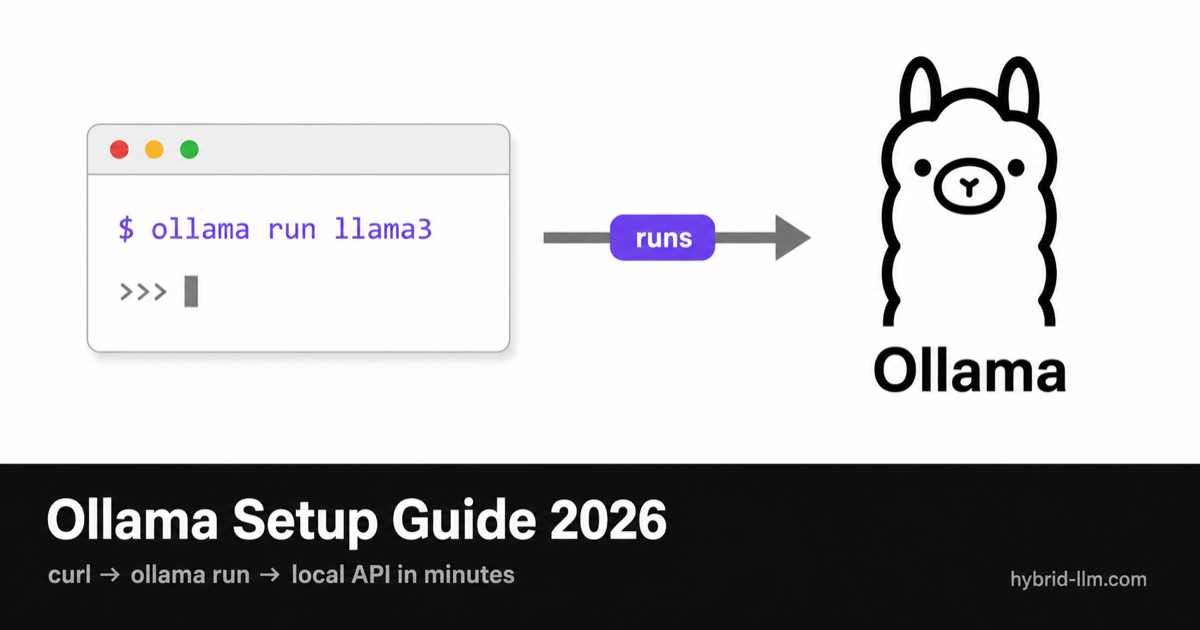
Ollama Setup Guide 2026: Install and Run Local LLMs on Mac, Windows & Linux
This is a step-by-step Ollama setup guide for Mac, Windows, and Linux — install it in one command, pull your first model, and have a local AI assistant (and an OpenAI-compatible API) running in about ten minutes. Everything stays on your machine: no cloud, no API keys, no monthly bills.
Key Takeaways
- Who this is for: Anyone with a Mac (M1+), a Windows/Linux PC with a recent GPU, or even a CPU-only machine who wants to run AI models locally from the terminal.
- What you’ll get: Ollama installed, your first model pulled and running, the essential commands, and a local OpenAI-compatible API at
http://localhost:11434. - Time required: ~10 minutes to a working chat; ~20 to a local API wired into your code.
- Cost: $0 — every tool in this guide is free and open source.
Step 1 – What Is Ollama and Why Use It?
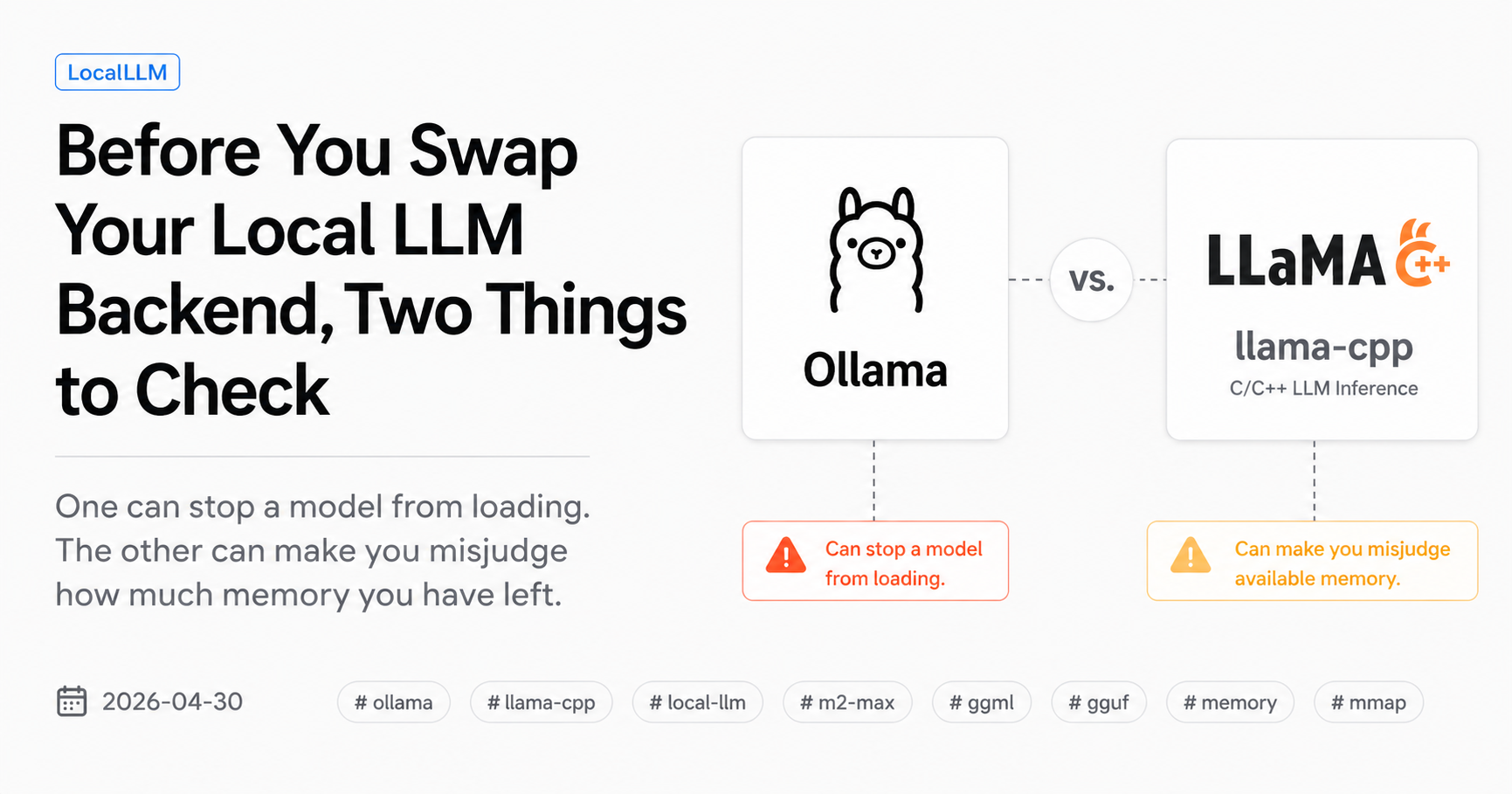
Prefer a GUI? Ollama is the terminal-first, developer-first way to run local models. If you’d rather click than type, read our Ollama vs LM Studio comparison first — they run the same models, just with very different ergonomics.
Ollama is a lightweight runtime that downloads, manages, and serves open-source large language models with a single command. Think of it as the git of local LLMs: ollama run qwen3 and you’re talking to a model. Under the hood it handles model downloads, quantization, GPU offloading, and an HTTP server — the parts that used to mean an afternoon of llama.cpp flags.
Why this matters in 2026:
- Privacy: Your prompts never leave your machine. For proprietary code, client data, medical or legal text, that isn’t a nice-to-have — it’s the requirement.
- Cost: Cloud API bills compound. A handful of developers on frontier models can burn $500–2,000/month. Local inference costs $0 after the hardware you already own.
- No rate limits: No throttling at 2 AM on a deadline, no quota emails.
- Offline: Works on a plane, on bad coffee-shop Wi-Fi, or inside an air-gapped network.
- Scriptable: Because it’s a CLI with an HTTP API, Ollama drops straight into shell scripts, cron jobs, and agent frameworks. This is why it’s the local backend of choice for so many AI-agent stacks.
Ollama now also ships a native desktop app for Mac and Windows if you want a chat window, but the CLI is where its real power lives — and it’s what the rest of this guide uses.
Already know what Ollama is? Jump to Step 3 – Installation.
Step 2 – Can Your Machine Run Ollama? System Requirements
Who This Guide Is For
- Developers who want a local, OpenAI-compatible API for hybrid LLM workflows.
- LM Studio users who want a scriptable, headless alternative for servers and automation.
- Power users and tinkerers comfortable with a terminal who want full control over models and parameters.
Minimum Requirements
| Component | Spec |
|---|---|
| RAM / Unified Memory | 8 GB (runs 3–8B models; tight but usable) |
| Storage | 10 GB free to start (models are 2–50+ GB each) |
| OS | macOS 14 Sonoma+, Windows 10 22H2+, or modern Linux |
| GPU | Not required, but strongly recommended for speed |
Recommended for a Good Experience
| Component | Spec |
|---|---|
| RAM / Unified Memory | 16–64 GB |
| GPU (NVIDIA) | RTX 3060 12 GB or better (driver 452.39+) |
| GPU (AMD) | ROCm 7-capable card, or Vulkan fallback |
| GPU (Apple) | M1 Pro / M2 / M3 / M4 with 16 GB+ unified memory |
| Storage | SSD with 50+ GB free |
The Sweet Spot in 2026
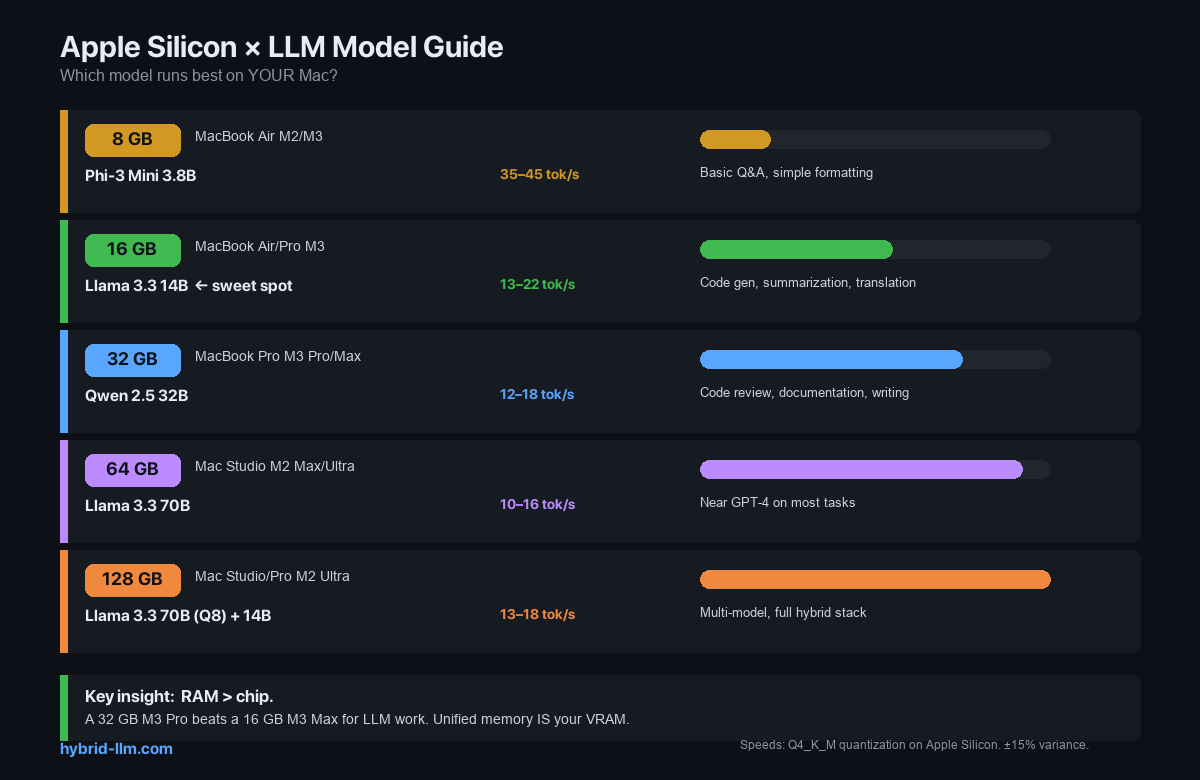
- Mac users: Apple Silicon is the best value in local LLMs because the CPU and GPU share one memory pool. An M-series Mac with 16 GB comfortably runs 12–14B models; 32 GB handles 27–32B; 64 GB+ opens up 70B-class models. This is the machine class that punches above its price.
- Windows / Linux users: Any NVIDIA card with 8+ GB VRAM works. The RTX 4060 (8 GB) is the budget champion; a 24 GB RTX 3090/4090 unlocks the 27–32B tier where local quality starts replacing cloud calls.
No dedicated GPU? CPU-only inference works — it’s just slower. Expect a few tokens per second on a modern CPU versus 20–60+ tokens per second with a capable GPU, depending on model and hardware.
Ready to install? Jump to Step 3 – Installation.
Step 3 – Installing Ollama
macOS
The fastest path — one command in Terminal:
curl -fsSL https://ollama.com/install.sh | sh
Prefer Homebrew? brew install ollama works too. Or download the desktop app from ollama.com/download and drag it to Applications. (macOS 14 Sonoma or later required.)
Windows
- Go to ollama.com/download and grab the Windows installer.
- Run
OllamaSetup.exe— it installs in your user account, no Administrator rights needed. - Ollama runs in the background; the
ollamacommand becomes available incmd, PowerShell, or your terminal of choice.
Prefer a package manager? winget install Ollama.Ollama. NVIDIA and AMD GPUs are supported automatically once your drivers are current.
Linux
curl -fsSL https://ollama.com/install.sh | sh
The script downloads the binary, creates a systemd service, sets up an ollama user, and detects your GPU. To run it as an always-on service:
sudo systemctl enable ollama
sudo systemctl start ollama
Verify the Install (all platforms)
ollama --version
If that prints a version, you’re done. To pin a specific release, prefix the install script: curl -fsSL https://ollama.com/install.sh | OLLAMA_VERSION=0.21.0 sh.
Checkpoint:
ollama --versionreturns a version number, and the Ollama service is running in the background (or viaollama serve). If a later command says “connection refused,” the server isn’t running — see Troubleshooting.
Step 4 – Pull and Run Your First Model
One command downloads a model and drops you into a chat:
ollama run llama3.1:8b
The first run downloads the model (a few GB), then gives you a >>> prompt. Type a message, hit Enter, and you’re running inference locally. Type /bye to exit.
Which Model Should You Pull?
Match the model to your memory. These are solid 2026 picks:
| Your RAM / VRAM | Model size | Good starting models |
|---|---|---|
| 8 GB | 3–8B, Q4 | llama3.2:3b, llama3.1:8b, qwen3:8b, gemma3:4b |
| 16 GB | 12–14B, Q4 | qwen3:14b, gemma4:12b, deepseek-r1:14b |
| 24–32 GB | 27–32B, Q4 | qwen3:30b, gemma4:26b, deepseek-r1:32b, qwen3-coder:30b |
| 64 GB+ | 70B+, Q4–Q8 | llama3.3:70b, qwen3:32b (Q8), gpt-oss:120b (high-end) |
A few notes for 2026:
- Best all-rounder:
qwen3:30bif it fits,qwen3:14bif not. Strong reasoning and tool use. - Best for agents / function calling:
gemma4:26b— native tool calling, multimodal, and light on memory thanks to its MoE design. - Best for reasoning:
deepseek-r1(the distilled 14B/32B tags run locally; the real 671B does not). It “thinks” before answering, which helps math and logic but is slower. - Best for coding:
qwen3-coder:30bordevstral-small-2. - Watch the
:latesttag.qwen3:latestis not the biggest Qwen3 — always pick an explicit size tag likeqwen3:30borgemma4:26b.
What the Q Numbers (Quantization) Mean
Quantization is how aggressively a model is compressed. Lower = smaller and faster, slightly lower quality; higher = larger, closer to original.
- Q4_K_M — best size/quality balance. Ollama’s default tags usually land here. Start here.
- Q5_K_M — noticeably better quality, ~25% larger.
- Q8 — near-original quality, roughly double Q4’s size.
Pro tip: pull a small model first (ollama pull llama3.1:8b) to confirm everything works before committing to a 40 GB download.
Checkpoint:
ollama run <model>gives you an interactive chat, andollama listshows the model you just pulled.
Step 5 – Essential Ollama Commands
Ollama is a terminal tool first, and a handful of commands cover 95% of daily use:
| Command | What it does |
|---|---|
ollama run <model> |
Download (if needed) and start an interactive chat |
ollama pull <model> |
Download a model without running it |
ollama list |
List models on disk |
ollama ps |
Show running models and whether they’re on GPU or CPU |
ollama stop <model> |
Unload a model from memory |
ollama rm <model> |
Delete a model |
ollama show <model> |
Show params, context length, and chat template |
ollama cp <src> <dst> |
Copy or alias a model |
ollama create <name> -f Modelfile |
Build a custom model from a Modelfile |
ollama serve |
Start the server manually (when not using the desktop app) |
You can also pipe input straight in — handy for scripts:
ollama run qwen3:14b "Summarize this file: $(cat README.md)"
Inside a chat session, slash commands tune behavior on the fly: /set parameter num_ctx 8192 (raise context), /show info (model details), /bye (exit), /? (help).
Step 6 – Using Ollama as a Local API Server
This is where Ollama becomes a real development tool — and the foundation of a hybrid LLM stack.
Whenever the Ollama service is running, it serves an HTTP API on http://localhost:11434. You get two interfaces:
- Ollama’s native REST API —
/api/chatand/api/generate. - An OpenAI-compatible endpoint —
/v1/chat/completions. Point any OpenAI-SDK code at it with a one-line change.
Native API (curl)
curl http://localhost:11434/api/chat -d '{
  "model": "qwen3:14b",
  "messages": [{"role": "user", "content": "Why is the sky blue?"}],
  "stream": false
}'
OpenAI-Compatible API (Python)
The same OpenAI SDK you already use — just change base_url:
from openai import OpenAI

client = OpenAI(
    base_url="http://localhost:11434/v1",
    api_key="ollama"  # required by the SDK, ignored by Ollama
)

response = client.chat.completions.create(
    model="qwen3:14b",
    messages=[{"role": "user", "content": "Explain quicksort in Python"}]
)

print(response.choices[0].message.content)
Your existing code works with zero refactoring — only the endpoint changes.
Why This Is the Foundation of a Hybrid LLM Stack
This is the core of what we write about at HybridLLM: not every task needs a paid cloud call. Route by difficulty.
| Tier | Where | Tasks | Cost |
|---|---|---|---|
| Tier 1: Local (Ollama) | Your machine | Summarization, extraction, formatting, classification, boilerplate, embeddings | $0 |
| Tier 2: Cloud (Claude / GPT / Gemini) | API call | Complex reasoning, multimodal judgment, frontier-quality output | Pay per use |
Because both tiers speak the same OpenAI API, your app doesn’t need to know which one answered. Same code, different economics — and the cheap tier handles the bulk of the volume. For a full walkthrough, see Building a Hybrid LLM Stack.
Checkpoint:
curl http://localhost:11434/api/tagslists your installed models over HTTP — proof the API is live and ready for your code.
Step 7 – Configuration and Performance Tuning
Ollama is configured almost entirely through environment variables. The ones that actually matter:
| Variable | What it controls |
|---|---|
OLLAMA_HOST |
Bind address/port. Default 127.0.0.1:11434; set 0.0.0.0 to reach Ollama from other devices on your LAN. |
OLLAMA_MODELS |
Where models are stored. Point this at an external/secondary SSD to keep your system drive clear. |
OLLAMA_KEEP_ALIVE |
How long a model stays loaded after a request (default 5m). Set -1 to keep it resident (no cold-start lag), 0 to unload immediately. |
OLLAMA_CONTEXT_LENGTH |
Default context window, e.g. 8192. Bigger context = more memory and slower generation. |
OLLAMA_FLASH_ATTENTION |
Set 1 to enable flash attention — lower memory use and faster on supported GPUs. |
On macOS (desktop app) set these in your shell profile or via launchctl setenv; on Linux, add them to the systemd unit (systemctl edit ollama) and restart.
The single most impactful setting is keeping the model you use constantly resident. If you hit a multi-second pause before every reply, your model is being unloaded between calls — set OLLAMA_KEEP_ALIVE=-1 (or a long value) and the lag disappears.
For deeper customization — system prompts, default parameters, templates — create a Modelfile:
FROM qwen3:14b
PARAMETER temperature 0.3
PARAMETER num_ctx 8192
SYSTEM "You are a terse senior engineer. Answer in code first, prose second."
ollama create my-coder -f Modelfile
ollama run my-coder
Step 8 – Troubleshooting Common Issues
| Symptom | Likely cause | Quick fix |
|---|---|---|
Error: connection refused on :11434 |
Server not running | Start the desktop app, or run ollama serve |
| “model requires more system memory” | Model too big for RAM/VRAM | Pull a smaller size or lower quant (Q4); close other apps |
| Very slow / stuck on CPU | Not offloaded to GPU | Run ollama ps and check the PROCESSOR column; update GPU drivers; pick a model that fits in memory with headroom |
| Multi-second pause before every reply | Model unloaded between calls | Set OLLAMA_KEEP_ALIVE=-1 to keep it resident |
| Garbled / incoherent output | Corrupt download or wrong template | ollama rm <model> then ollama pull <model> again |
| Can’t reach Ollama from another device | Bound to localhost only | Set OLLAMA_HOST=0.0.0.0 and restart the service |
| Disk filling up | Models accumulate fast | ollama list to audit, ollama rm unused models, or move OLLAMA_MODELS |
Check GPU usage at a glance: ollama ps shows each loaded model and whether it’s running on GPU, CPU, or split across both. If a model you expected to fit is on CPU, it’s too large for your available memory at that quantization — drop a size or a quant level.
My Ollama Stack (What I Actually Run)
I run Ollama daily on an M2 Max with 64 GB unified memory, and it’s the local tier of a larger agent setup rather than a chat toy. The models that earn their disk space:
gemma4:26b— my default reasoning and reviewer model. Multimodal, native tool calling, and the MoE design keeps it light enough to stay resident.qwen3.5-nothink— fast web extraction, compression, and short subtasks where I don’t want chain-of-thought overhead.qwen2.5-coder:14b— coding help (with the caveat that this size doesn’t do tool calling well).nomic-embed-text— free, open embeddings for retrieval and research pipelines.
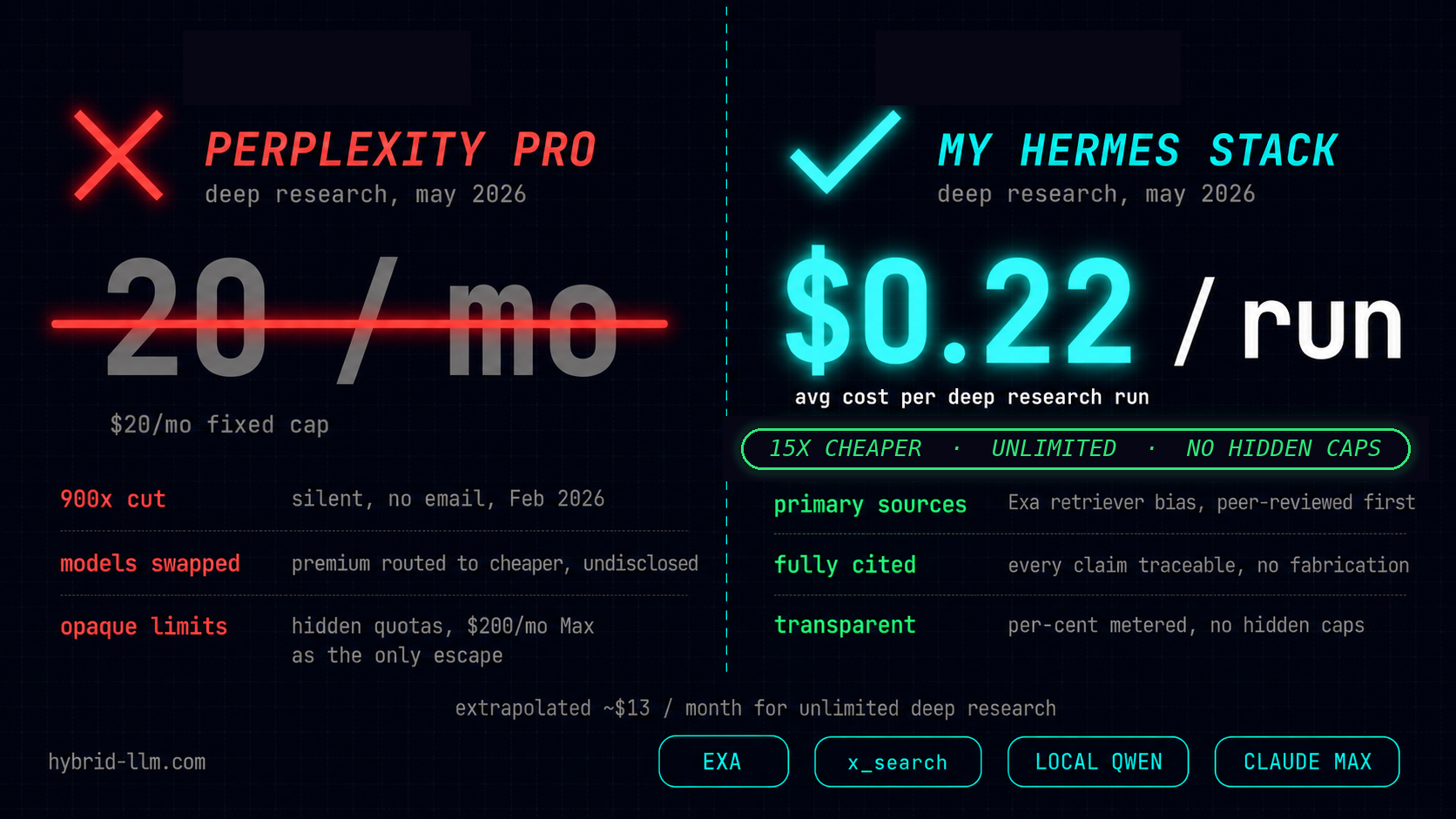
These run as profiles inside an agent framework, with OLLAMA_KEEP_ALIVE long so the model I lean on doesn’t cold-start. For one heavier research workload I run a larger Qwen via llama-server instead of Ollama — but for everything day-to-day, ollama run is the whole workflow. I wrote up how that local-first stack keeps a deep-research loop down to ~$0.22 a query in The $0.22 Research Loop.
The point isn’t this exact lineup — it’s that once Ollama is serving a local API, the model becomes a component you route work to, not an app you open.
What’s Next
Read these next, in order:
- Best Local LLM Models for M2/M3/M4 Mac: Benchmark 2026 — match the right model to your exact Mac.
- Ollama vs LM Studio — decide whether terminal or GUI fits your workflow.
- Choosing Local LLMs for AI Agents — how I picked the models above for real agent work.
- Building a Hybrid LLM Stack — wire local + cloud into one routing layer.
Running Ollama in your own hybrid setup? Tell me what’s in your stack on X/Twitter.